
A gaming computer does not have to sound like a small airplane taking off whenever you launch a demanding game. With the right components, sensible cooling, and a few adjustments, you can build a quiet gaming system without spending a fortune. Many people assume that affordable computers must use loud fans and basic cooling systems, but that is not always true. Even a budget gaming pc can deliver excellent gaming performance while keeping noise levels comfortable for everyday use.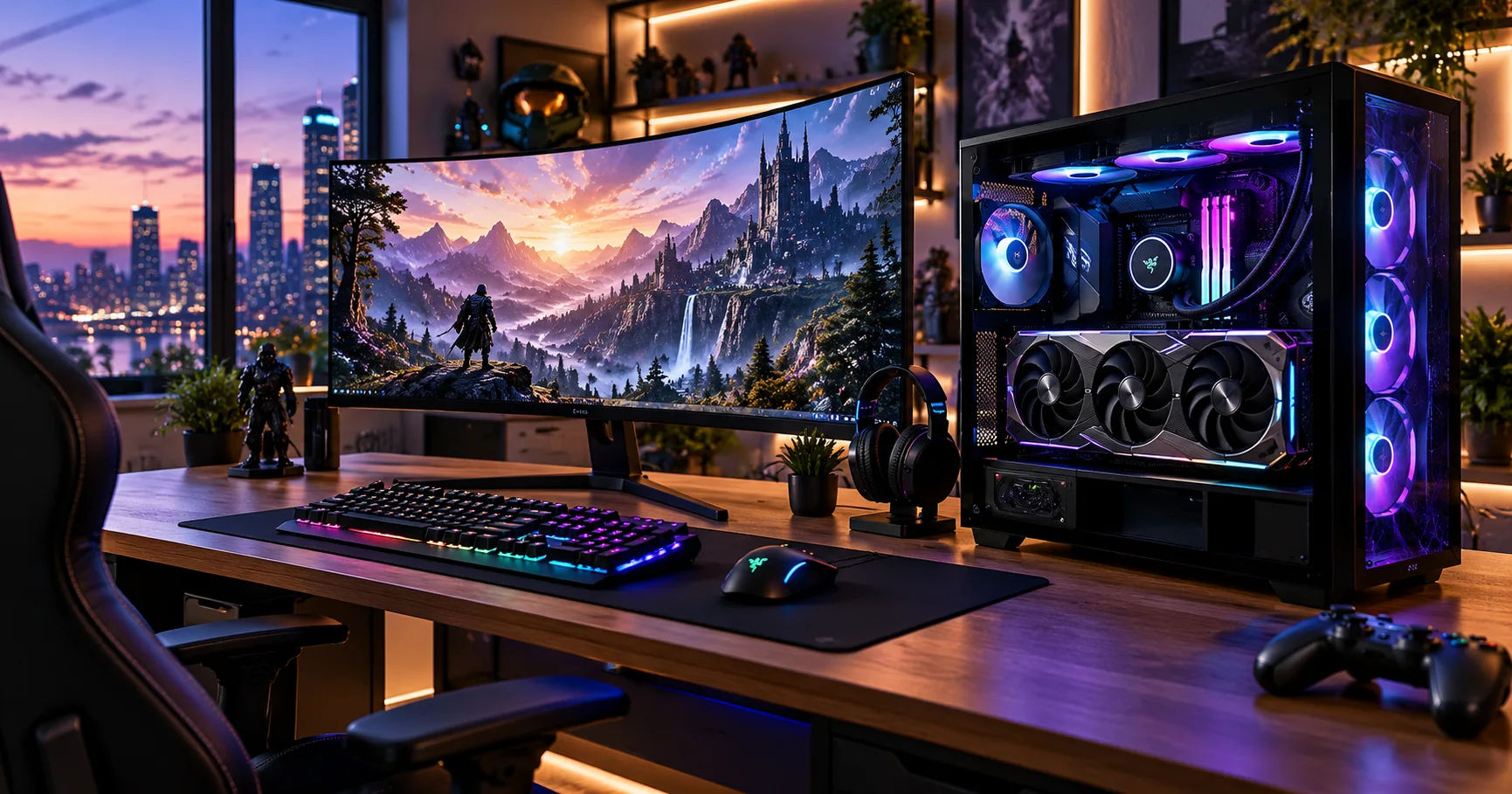
The amount of noise a computer produces depends on several factors, including its processor, graphics card, cooling fans, power supply, and case design. The games you play also matter because demanding titles make components work harder and generate more heat. Fortunately, you do not need expensive water cooling or premium components to reduce this noise. Understanding where the sound comes from is the first step toward creating a quieter setup.
If you enjoy playing games late at night, sharing a room with someone, or using your computer for work and entertainment, a quieter system can make a significant difference. You can reduce unnecessary fan noise while maintaining stable temperatures and reliable performance. This guide explains how quiet an affordable gaming computer can realistically become, which components matter most, and how to control noise without wasting money.
How Quiet Can an Affordable Gaming Computer Be?
A well-designed gaming computer can be surprisingly quiet during everyday activities. When browsing websites, watching videos, writing documents, or performing other light tasks, its fans may run slowly enough to become barely noticeable in a typical room.
During gaming, the situation changes. The processor and graphics card generate more heat, requiring fans to move additional air through the case. The resulting noise depends on the hardware, cooling design, room temperature, and game workload.
Computer Noise Levels
Computer noise is commonly measured in decibels, written as dB or dBA. The decibel scale is logarithmic, meaning that an increase of 10 dB represents a tenfold increase in sound intensity, although people generally perceive that change as approximately twice as loud.
Here are some approximate examples to help you understand the differences:
-
20–25 dBA: Very quiet operation in a suitable environment, although background noise can affect measurements.
-
25–30 dBA: A quiet computer that may produce a soft, noticeable airflow sound.
-
30–35 dBA: Moderate fan noise that is generally comfortable for many people.
-
35–40 dBA: Clearly audible cooling, especially in a quiet bedroom.
-
Above 40 dBA: Potentially distracting for noise-sensitive users, depending on the sound and listening distance.
These figures are illustrative rather than guaranteed performance ratings. Actual noise measurements depend on microphone distance, room acoustics, background noise, and the equipment used.
A quiet budget gaming pc might remain nearly inaudible at idle and produce a gentle airflow sound during less demanding games. Under a heavy gaming workload, its fans may become more noticeable. However, a carefully selected system can avoid the harsh, high-pitched noise associated with poorly configured cooling.
Why Some Affordable Computers Are Louder Than Others
Price alone does not determine how noisy a computer will be. Two systems with similar gaming performance can produce very different sound levels because their manufacturers use different cooling components and fan settings.
One computer might have a large heatsink, several efficient case fans, and a graphics card with a quiet cooling profile. Another might use a small heatsink and inexpensive fans that need to spin rapidly to control temperatures.
Case ventilation also matters. When air cannot move freely, internal temperatures rise, forcing fans to work harder. Dust buildup, poorly positioned cables, and excessive voltage can contribute to the problem.
The good news is that many of these issues can be addressed through careful component selection and basic maintenance rather than expensive upgrades.
Which Components Make the Most Noise?
Before spending money on quieter hardware, identify the parts most likely to produce noise. This helps you prioritize improvements instead of replacing components unnecessarily.
Graphics Card Fans
The graphics card is often one of the main sources of noise during gaming. Modern graphics cards can consume considerable power, and that power eventually becomes heat that must be removed.
Some graphics cards use larger heatsinks and multiple fans, allowing them to cool efficiently at lower speeds. Others use smaller cooling systems that need higher fan speeds under the same workload.
If you are buying a graphics card for a budget gaming pc, compare reviews that include measured noise levels and temperatures. Two cards using the same graphics processor can have different cooling performance because of their heatsinks, fan designs, and power limits.
Many graphics cards also support zero-RPM modes. This feature stops the fans when temperatures are sufficiently low, allowing the card to operate silently during light workloads.
However, the fans will generally start spinning when gaming temperatures increase. Zero-RPM operation does not mean that the graphics card will remain silent during every game.
Processor Cooling Fans
The processor, also known as the CPU, generates heat while running games and other applications. A cooler must remove that heat to prevent excessive temperatures and performance throttling.
The basic cooler included with some processors may be adequate for normal operation, but it can become loud under sustained workloads. Small fans often need to spin faster than larger fans to move comparable amounts of air.
A reasonably priced tower air cooler can improve both temperature control and acoustics. Its larger heatsink provides more surface area for releasing heat, while its fan can often operate at a lower speed.
Before purchasing a cooler, check that it supports your processor socket and fits inside your computer case. Also consider memory clearance and the available space around the motherboard.
You do not necessarily need an expensive liquid cooler to achieve quiet operation. For many affordable gaming systems, a good air cooler provides an excellent balance of cost, reliability, and noise control.
Case Fans
Case fans move cool air into the computer and carry warm air away from its components. Their number, size, quality, and operating speed can strongly influence the overall noise level.
Installing more fans does not automatically make a computer quieter. Several inexpensive fans running at high speeds may create more noise than two or three well-positioned fans operating slowly.
Larger fans can often move sufficient air at lower rotational speeds, although the actual result depends on their design and the resistance created by filters, grilles, and other obstructions.
For a typical gaming system, two or three properly positioned fans may provide enough airflow. The exact arrangement depends on the case and the heat generated by the hardware.
Power Supply Noise
The power supply unit, or PSU, converts electricity from the wall into the power required by your computer. Its internal components generate heat, and many units use a fan to manage that temperature.
A low-quality power supply may have a noisy fan or produce unwanted electrical sounds. A reliable model with a suitable wattage rating can improve the overall experience.
Some power supplies include zero-RPM fan modes that stop the fan under lighter loads. However, these features vary by model and do not guarantee silence under heavy gaming conditions.
Choose a power supply with sufficient capacity for your processor and graphics card. Avoid selecting a unit based only on its advertised wattage or lowest price.
Also remember that coil whine is different from fan noise. It is a high-pitched electrical sound that can come from the power supply or graphics card. Replacing a fan will not necessarily resolve it.
How to Build a Quiet Gaming PC on a Budget
Building a quieter computer does not require buying the most expensive components available. The best approach is to prioritize efficient hardware, effective airflow, and sensible fan control.
Choose Efficient Components
Power consumption has a direct relationship with the amount of heat a computer must remove. Although efficiency does not determine noise on its own, components that consume less power often make quiet cooling easier to achieve.
For example, a graphics card that produces the required gaming performance at a lower power level may need less aggressive cooling than a substantially more power-hungry alternative.
When comparing components, look beyond gaming benchmarks. Consider power consumption, measured noise, cooling temperatures, and the quality of the included heatsink.
This approach helps you avoid paying extra for performance you do not need while selecting hardware that is easier to cool quietly.
Select a Case With Good Airflow
A computer case affects how easily fresh air reaches the graphics card, processor cooler, and other heat-producing components.
Cases with a ventilated front panel often provide better airflow than designs with heavily restricted intake openings. Mesh panels can help air enter the system without requiring fans to spin excessively fast.
Look for a case with sensible fan mounting options, removable dust filters, and enough space for your chosen components.
You do not need a premium case with decorative lighting or elaborate features. A simple, well-ventilated enclosure can be a better choice for someone who prioritizes low noise and reliable cooling.
However, airflow is not the only consideration. Large openings may allow more sound to escape, while some enclosed cases restrict airflow enough to increase fan speeds. The best design balances ventilation, cooling, and acoustic performance.
Invest in a Good CPU Cooler
If your processor cooler becomes loud during gaming, replacing it may provide a noticeable improvement.
A budget-friendly tower cooler with a larger heatsink can often manage heat without forcing its fan to run at maximum speed. This is particularly helpful when playing games that place sustained demands on the processor.
Check independent reviews before buying. A cooler that performs well in one system may behave differently in another because of case ventilation, processor power limits, and ambient temperature.
Remember that compatibility matters as much as cooling performance. Confirm the cooler's dimensions, socket support, and clearance requirements before ordering.
Avoid Unnecessary Accessories
Decorative lighting, extra fan controllers, and elaborate cooling accessories can increase costs without improving acoustic performance.
RGB lighting itself does not normally create significant noise, but fans included with inexpensive lighting kits may be less refined than higher-quality alternatives.
Spend money where it makes a practical difference. Efficient cooling, a suitable case, and a dependable power supply are generally more important than decorative features.
A carefully planned budget gaming pc can remain affordable while delivering a comfortable noise level for gaming, studying, and everyday use.
How to Reduce Gaming PC Noise Without Spending More Money
One of the best things about building a gaming computer is that you can improve its sound levels through software and maintenance. Before buying new components, try these simple adjustments.
Adjust the Fan Curve
A fan curve determines how quickly a fan spins as component temperatures increase. Many motherboards allow you to customize these settings through the BIOS or UEFI menu.
Some default settings increase fan speed too aggressively when temperatures rise briefly. This can make the computer sound louder than necessary, even when the temperature change is temporary.
You can create a smoother fan curve that allows fans to run slowly during light workloads and increase speed gradually as temperatures rise. This reduces unnecessary changes in fan noise.
For example, you might configure your case fans to run at a low speed during everyday use and increase their speed during demanding games. The exact settings depend on your hardware and cooling requirements.
Always monitor temperatures after making adjustments. Lower fan speeds should never come at the expense of safe operating temperatures. Manufacturer guidance explains how PWM and DC fan controls work and why custom fan curves should be tested for each system.
Clean the Computer Regularly
Dust can collect on fans, heatsinks, filters, and ventilation openings over time. This buildup restricts airflow and can cause components to become warmer than necessary.
When temperatures rise, cooling fans may spin faster to compensate. As a result, a computer that was initially quiet can become noticeably louder after several months of use.
To prevent this problem, inspect your computer periodically and clean its dust filters. Shut down the system, disconnect its power, and follow the manufacturer's cleaning recommendations.
Use appropriate methods to remove dust without damaging delicate components. Avoid forcing liquid cleaners into the computer or allowing fans to spin uncontrollably under compressed air.
Regular cleaning helps maintain airflow and can reduce unnecessary fan activity.
Reduce Unnecessary Background Activity
Sometimes, loud fans have little to do with the computer's cooling hardware. Background applications may keep the processor or graphics card busy when you are not actively using them.
Open Task Manager in Windows and check which applications consume significant system resources. Close unnecessary programs and review applications that launch automatically when the computer starts.
Malfunctioning software, unnecessary background tasks, and unwanted processes can increase power consumption and heat production.
If your computer becomes loud while performing simple tasks, investigate these causes before replacing its fans. Persistent fan noise can sometimes indicate excessive workload or overheating rather than a hardware design problem.
Limit the Frame Rate in Games
A graphics card does not always need to produce the highest possible frame rate to deliver a smooth gaming experience.
Suppose your monitor supports a refresh rate of 144 Hz, but your graphics card produces 250 frames per second in a particular game. Rendering every possible frame may increase power consumption without providing a noticeable benefit in every situation.
Setting a suitable frame-rate limit can reduce the graphics card's workload. This may lower power consumption, temperatures, and fan speeds.
The results vary by game and hardware, but it is a useful adjustment to test before spending money on cooling upgrades.
For a budget gaming pc, this is especially helpful because it can improve noise levels without requiring additional hardware.
Is Water Cooling Necessary for a Quiet Gaming PC?
Water cooling is often associated with high-performance gaming computers, but it is not essential for a quiet system.
There are two main types of cooling to consider: air cooling and liquid cooling. Each has advantages and disadvantages, and neither guarantees a quieter computer.
Air Cooling: Affordable and Practical
Air cooling uses a heatsink and fan to transfer heat away from the processor. It is generally straightforward to install and maintain.
A good air cooler can provide excellent thermal performance without requiring a pump, radiator, or additional tubing.
For many entry-level and midrange gaming systems, air cooling offers the best balance of price, reliability, and noise control.
It is also easier to troubleshoot because the system has fewer moving components than a typical all-in-one liquid cooler.
Liquid Cooling: Useful but Not Essential
An all-in-one liquid cooler uses a pump to circulate coolant through a radiator. Fans attached to the radiator release heat into the surrounding air.
Liquid cooling can be useful for processors that produce substantial heat, especially when the system has limited space for a large air cooler.
However, liquid coolers introduce additional noise sources. The pump can produce a continuous hum, and radiator fans may become loud under sustained workloads.
A liquid cooler may also cost more than an air cooler that provides sufficient performance for the same processor.
If you are building an affordable computer, compare the total cost and measured noise levels before choosing liquid cooling. Spending extra on a radiator will not automatically make your system quieter.
For most budget-conscious gamers, a well-chosen air cooler is an excellent starting point.
Does the Computer Case Affect Noise Levels?
Yes. The computer case plays an important role in determining how much noise you hear from the cooling system.
A case influences airflow, vibration, component temperatures, and the amount of sound that escapes from the computer.
Mesh Cases Versus Enclosed Cases
Mesh-front cases allow air to enter through a ventilated panel. This can improve cooling efficiency and reduce the fan speed needed to maintain suitable temperatures.
Enclosed cases may reduce some high-frequency sounds, but restricted airflow can cause internal temperatures to rise.
When that happens, the fans may need to spin faster, potentially eliminating the acoustic advantage of the enclosed design.
The best choice depends on the hardware, case construction, and cooling arrangement. A well-designed mesh case can be quieter than an enclosed case if it allows the components to stay cool with slower fans.
Prevent Vibrations and Rattling
Not all computer noise comes from airflow. Loose screws, vibrating panels, poorly secured cables, and mechanical hard drives can also produce unwanted sounds.
If you hear rattling, identify the source before replacing components.
Check that the case panels are secure and that cables are not touching fan blades. Make sure fans are properly mounted and that drive cages or other loose components are not vibrating against the case.
Rubber mounting points can help reduce vibration in some situations, although their effectiveness depends on the component and mounting design.
These small details can make a noticeable difference, particularly when the computer is positioned close to your desk.
How Quiet Can Different Types of Gaming Computers Be?
The noise level you can expect depends on your hardware and the type of games you play.
The following examples describe general possibilities rather than guaranteed measurements.
Entry-Level Gaming Systems
An entry-level computer designed for esports titles and lighter games can be relatively quiet because its components may not need to operate at maximum power.
Games such as older competitive titles or less demanding indie games may place limited demands on the cooling system, depending on frame rates and settings.
A suitable processor cooler, a well-ventilated case, and a modest graphics card can provide a comfortable noise level without an expensive cooling setup.
However, an entry-level computer can still become loud if it uses a small, inefficient cooler or has poor airflow.
Midrange Gaming Systems
Midrange systems generally offer a useful balance between gaming performance, cost, and acoustic comfort.
They may use more powerful graphics cards and processors than entry-level systems, but carefully selected components can still deliver manageable temperatures and fan noise.
For example, a graphics card with an effective heatsink can remain quieter than a less expensive model with a smaller cooling system, even when both deliver similar gaming performance.
If you want a quiet computer for everyday use and modern games, this category provides many practical options.
High-Performance Systems
High-performance gaming computers can also be quiet, but achieving low noise becomes more challenging as power consumption increases.
Powerful graphics cards and processors can generate substantial heat during demanding games. Maintaining low temperatures may require larger heatsinks, more airflow, or higher fan speeds.
A carefully tuned high-performance system can remain relatively quiet, but it may cost more to achieve the same acoustic comfort as a lower-powered system.
For this reason, choosing hardware that matches your actual gaming needs is often more effective than buying the most powerful components available.
How to Test Whether Your Gaming PC Is Quiet
After building or adjusting your computer, test it under realistic conditions.
Do not judge its noise level only by listening while the system is idle. A computer may be nearly silent on the desktop but much louder after playing a demanding game for 30 minutes.
Test Different Workloads
Start with light tasks such as browsing the internet or watching videos. Listen for unnecessary fan activity, electrical buzzing, or rattling.
Next, play a game that represents your usual workload. Allow the computer to warm up before judging its noise level.
Finally, check the processor and graphics card temperatures using appropriate monitoring software.
Record the temperatures and fan behavior during each test. This gives you a useful baseline for future adjustments.
Listen for Different Types of Noise
Identifying the sound can help you determine the appropriate solution.
-
Airflow noise: Usually sounds like air moving through the case or past a fan grille.
-
Mechanical rattling: May indicate loose panels, cables, screws, or fan mounts.
-
High-pitched electrical noise: May be coil whine from a graphics card or power supply.
-
Grinding or clicking: May indicate a failing fan or another mechanical problem.
If a fan makes unusual grinding noises, inspect it and consider replacing it if necessary. If you hear electrical buzzing, investigate the source rather than assuming that a fan adjustment will solve the issue.
Measure Noise Carefully
A sound-level meter can help you compare different configurations. Smartphone applications may also provide rough readings, although their accuracy varies.
Measure from the same distance each time and keep background conditions as consistent as possible.
For example, compare your computer's noise before and after changing the fan curve. Even if you cannot obtain laboratory-quality measurements, a consistent testing method can reveal whether your adjustments are helping.
Remember that measured decibel levels do not fully describe how annoying a sound feels. A high-pitched noise may be more distracting than a lower, smoother airflow sound at a similar measured level.
Common Mistakes to Avoid When Building a Quiet PC
Several common mistakes can make an otherwise good computer louder than necessary.
Choosing Components Based Only on Price
The cheapest graphics card, cooler, or case fan may not provide the best overall value.
A component that saves money initially but produces excessive noise may lead to additional spending later.
Compare independent reviews, cooling performance, and measured acoustics before purchasing important components.
Setting Every Fan to Maximum Speed
Maximum fan speed is useful when a system needs additional cooling, but it is rarely necessary for every fan to operate at full speed all the time.
An unnecessarily aggressive fan profile can increase noise without providing a meaningful improvement in everyday performance.
Use appropriate fan curves and check temperatures under sustained gaming workloads.
Reducing Fan Speeds Too Much
The opposite mistake is prioritizing silence so heavily that cooling becomes inadequate.
Excessively low fan speeds can cause high temperatures, thermal throttling, and reduced performance. Components may also become unstable if their thermal limits are exceeded.
Never disable thermal protection or ignore temperature warnings to make the computer quieter.
A good setup balances noise, cooling performance, and component reliability.
Ignoring the Room Environment
The position of your computer affects how loud it seems.
A computer placed directly beside your ears may sound more noticeable than the same system positioned farther away.
Hard desks and shelves can also amplify vibrations if the case is not sitting securely.
Leave enough space around the case for ventilation, avoid blocking intake and exhaust openings, and consider how the computer's position affects your listening experience.
Conclusion
A gaming computer does not have to be loud simply because it is affordable. With sensible component selection, effective airflow, suitable cooling, and carefully adjusted fan settings, it is possible to create a comfortable gaming environment without spending a fortune.
The key is understanding what causes the noise. Graphics card fans, processor coolers, case fans, and power supplies can all contribute to the overall sound level. Identifying the loudest component helps you focus your budget on improvements that provide the greatest benefit.
A well-planned budget gaming pc can operate very quietly during everyday activities and remain reasonably quiet during many gaming sessions. Its exact noise level depends on the games you play, component power consumption, room temperature, case design, and cooling quality.
Start with efficient hardware and a ventilated case. Choose a processor cooler that matches your workload, use a reliable power supply, and avoid installing unnecessary fans. After building the system, adjust its fan curves gradually and monitor temperatures to ensure that cooling remains effective.
You should also maintain the computer by cleaning dust filters, checking for loose components, and investigating unusual noises. Simple maintenance and software adjustments can sometimes make a greater difference than purchasing expensive accessories.
Water cooling is an option, not a requirement. For many affordable systems, a good air cooler and a sensible airflow arrangement provide everything needed for dependable, quiet gaming.
Ultimately, the goal is not necessarily to create a completely silent computer under every workload. Instead, aim for a system that keeps temperatures under control without producing distracting noise. By balancing performance, cooling, and cost, you can enjoy your games without allowing the sound of your computer to dominate the experience.
Comments are closed, but trackbacks and pingbacks are open.